
PHACON Mixed Reality Trainer | Setup Guide
Welcome! This guide will help you set up your Meta Quest headset and install the Mixed Reality Trainer App.
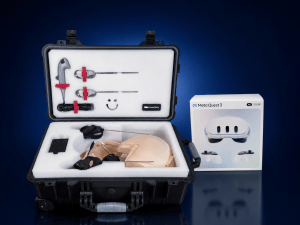
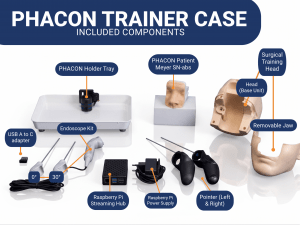
Before you start setting up your new Mixed Reality Trainer, please check if you have all components necessary. Compare with the checklist below:
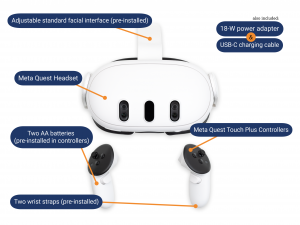
Meta Quest Box Contents
Please make sure to check all the components on the Meta Quest 3 box.
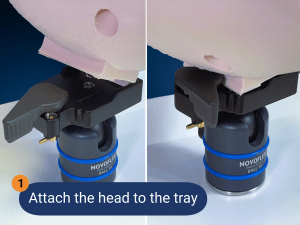
Trainer Setup
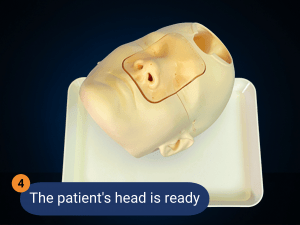
Now that you’ve made sure all necessary components are present, it is time to start mounting the PHACON trainer. To do so, it is necessary to assemble the PHACON Patient’s head on the tray.
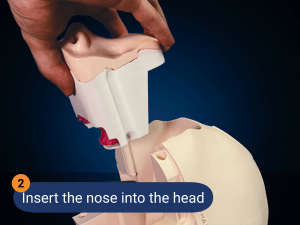
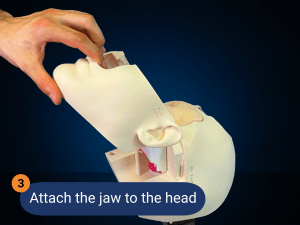
Meta Quest Setup
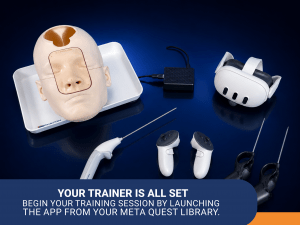
Now that the PHACON Head is mounted on the tray and its nose and jaw are assembled, we can now proceed to set up the Virtual Reality components of the trainer.
Preparing the Hardware
- Remove the battery blocker from each controller by pulling the plastic tab.
- Remove the protective film from the headset lenses and the front cameras.
- Remove the protective straps wrapping the controllers.
Fit, Power, & Initial Connection
- Put on your Meta Quest headset: Place it over your eyes first, then slide the strap back over your head.
- Adjust the head strap: Adjust the side straps and top strap until the headset fits securely and comfortably against your face.
- Turn on the headset: Press and hold the power button on the left side of the headset for three seconds.
- Note: If the headset battery is empty, connect it to the 18-W power supply and continue the setup.
- Choose your language and select your local Wi-Fi network to connect to the internet.
Horizon Store & Meta Account Pairing
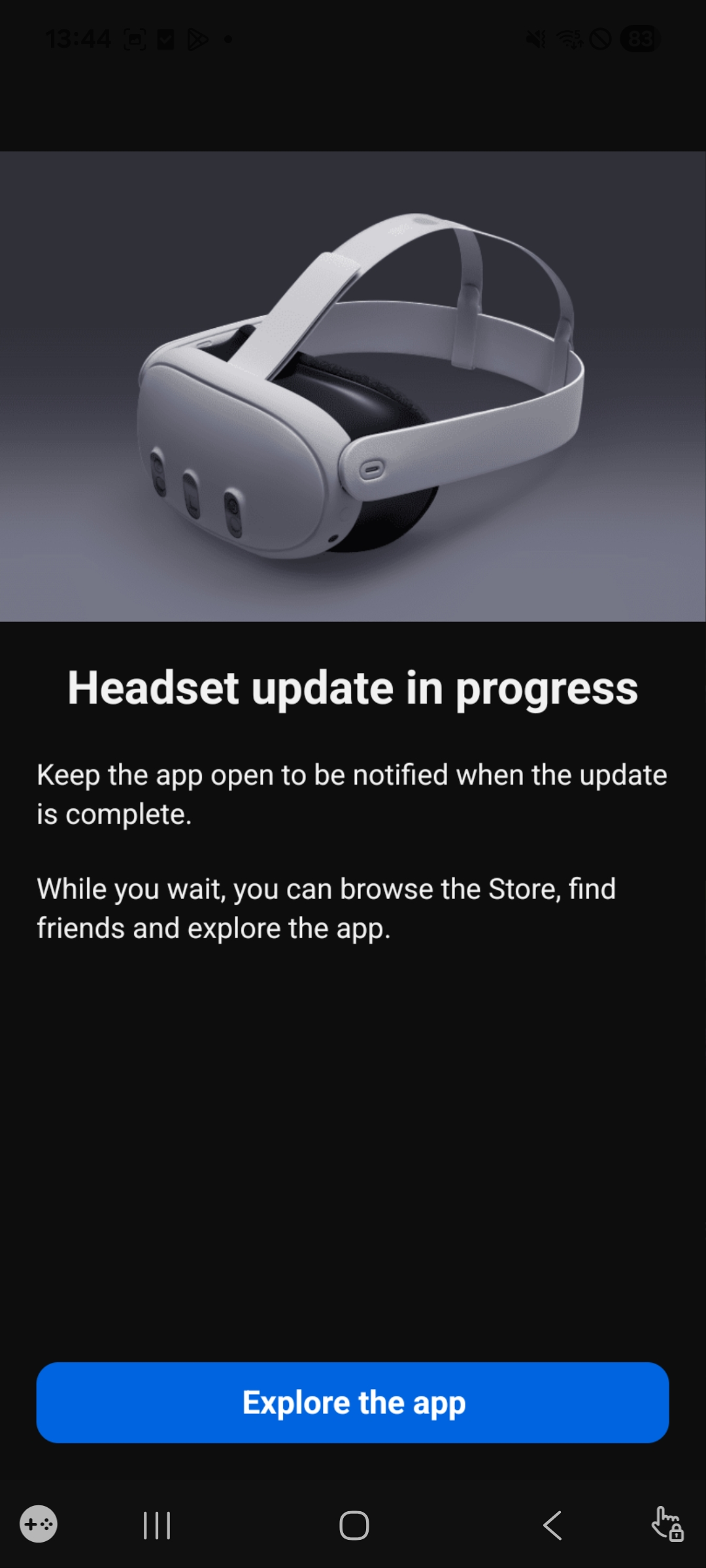
Now that the Meta Quest is set up, it is time to download the PHACON Mixed Reality Trainer app. To download the Mixed Reality Trainer App, we require a Meta Account and the Meta Horizon smartphone app. Download the Meta Horizon app and create a Meta Account.
- Download the Meta Horizon App:
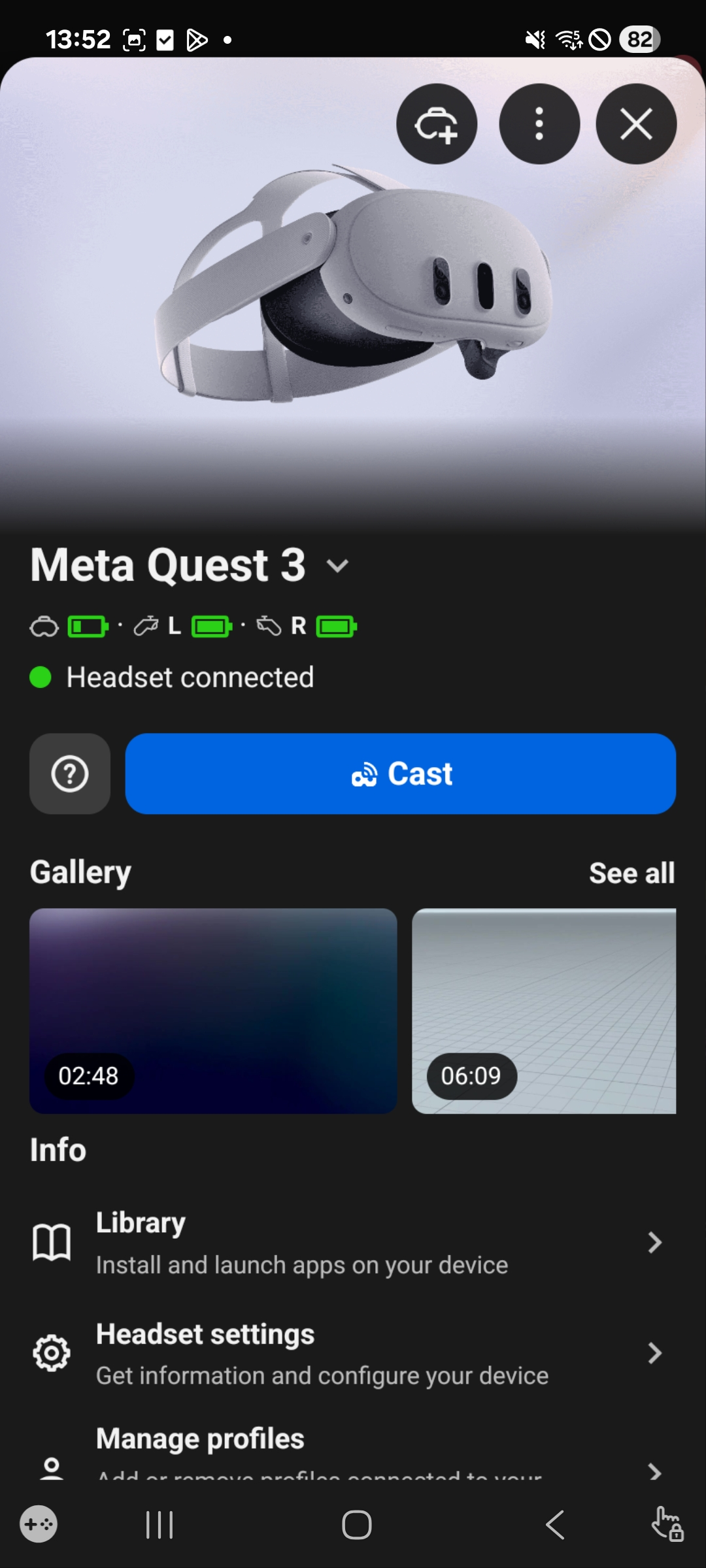
- Open the app and log in or create a new Meta Account.
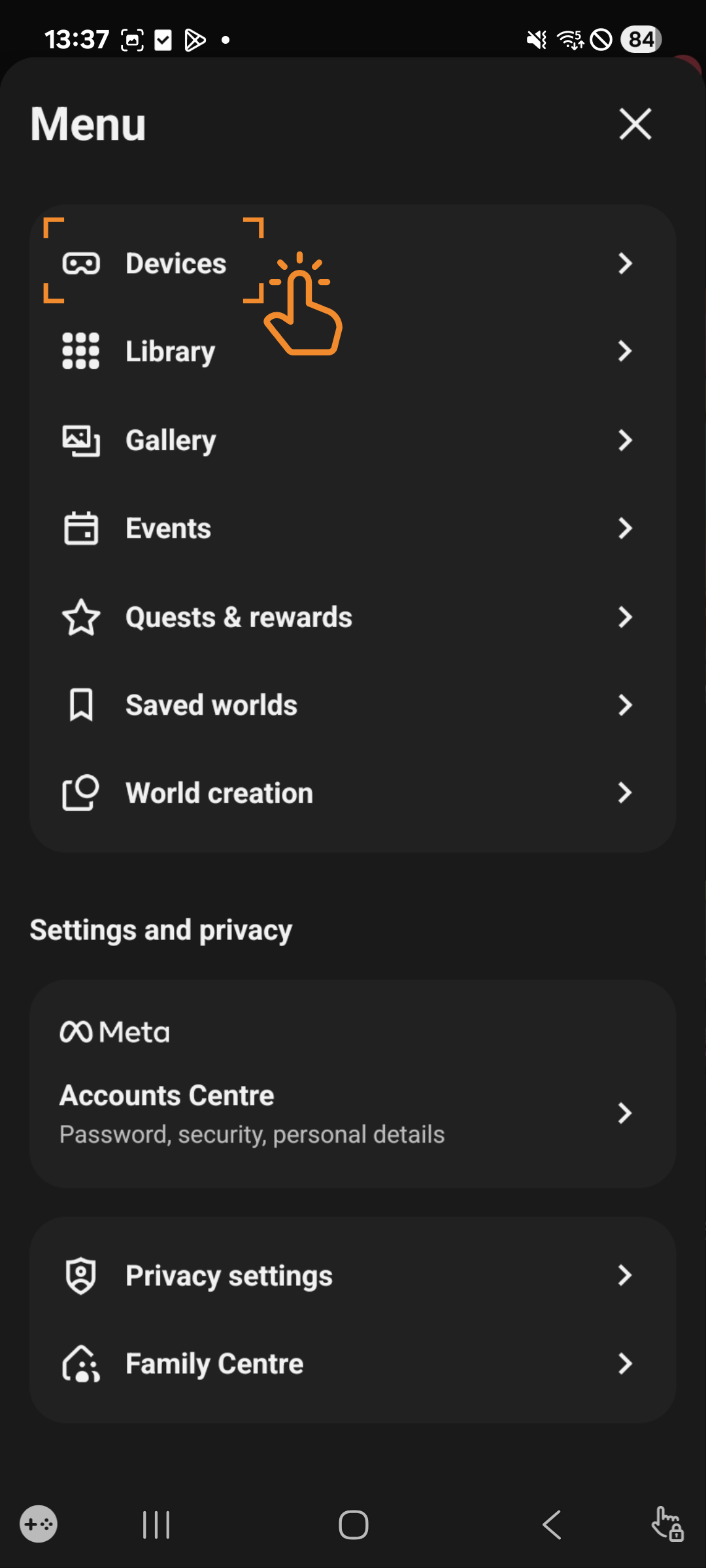
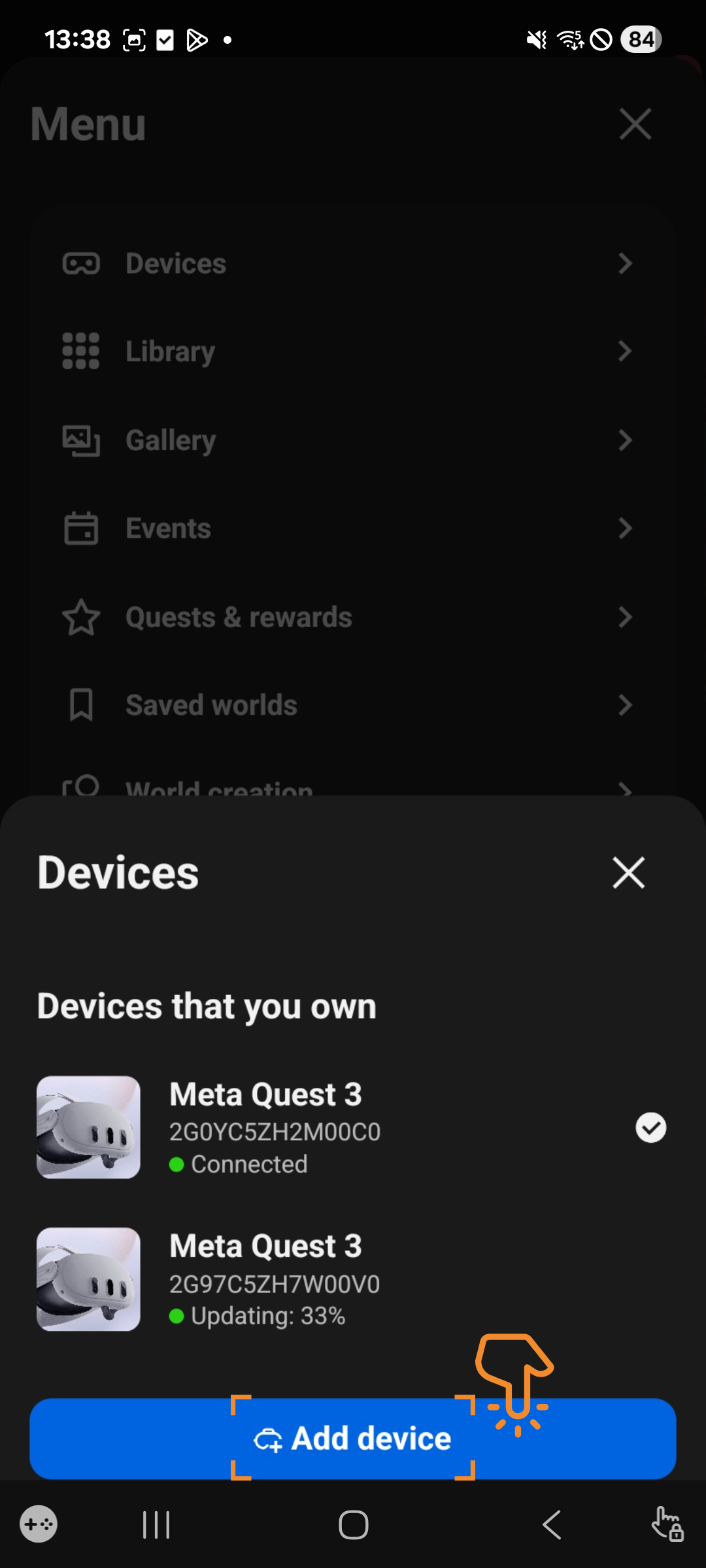
- Tap the Menu (≡) icon in the bottom right, then tap Devices.
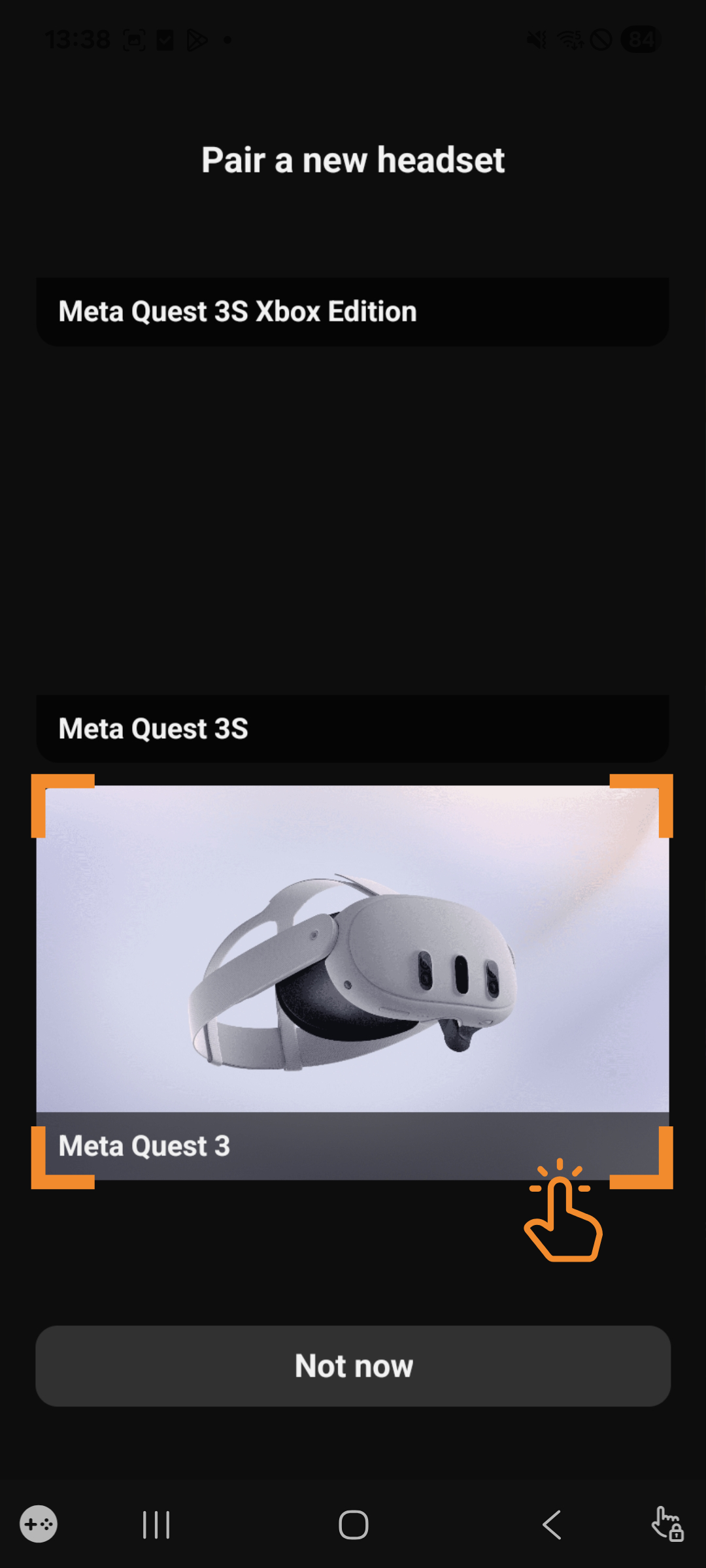
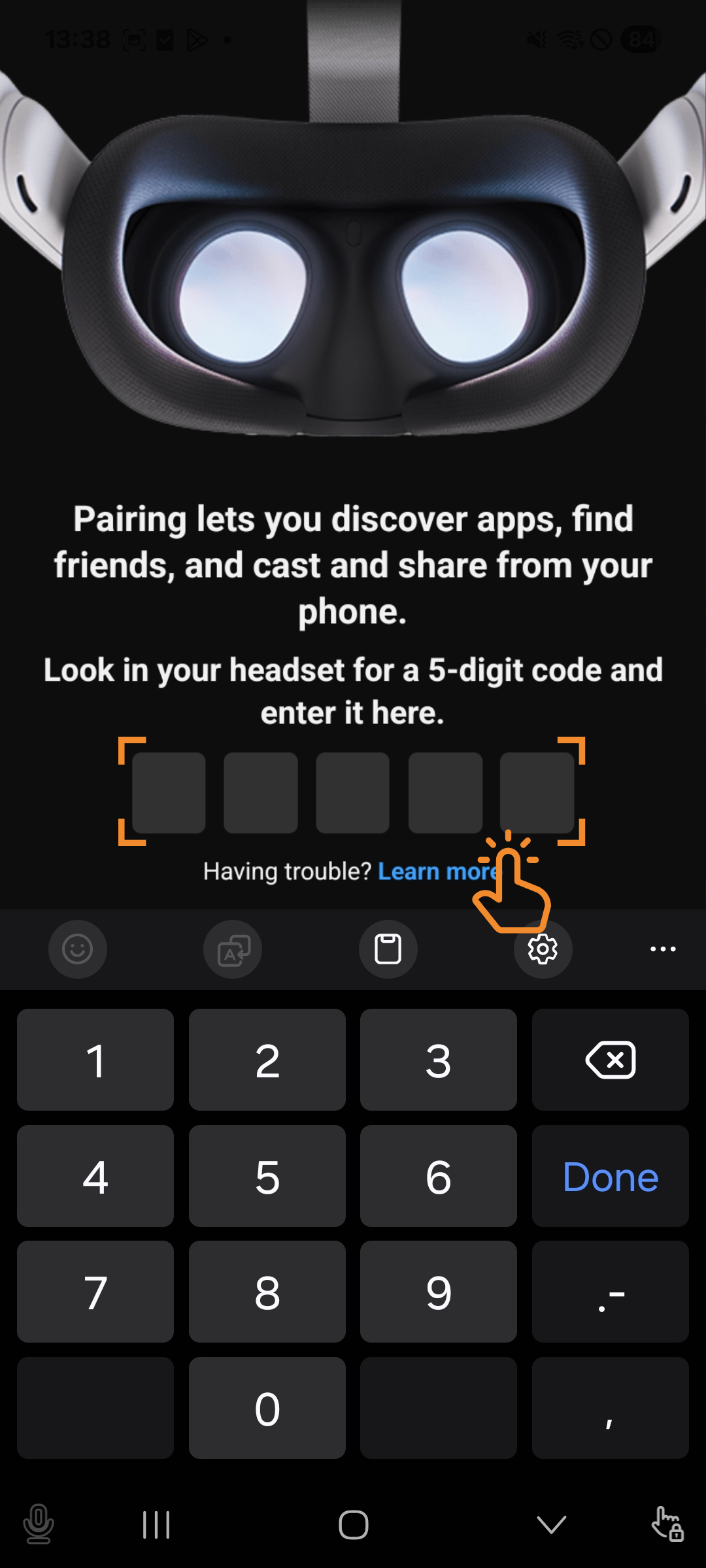
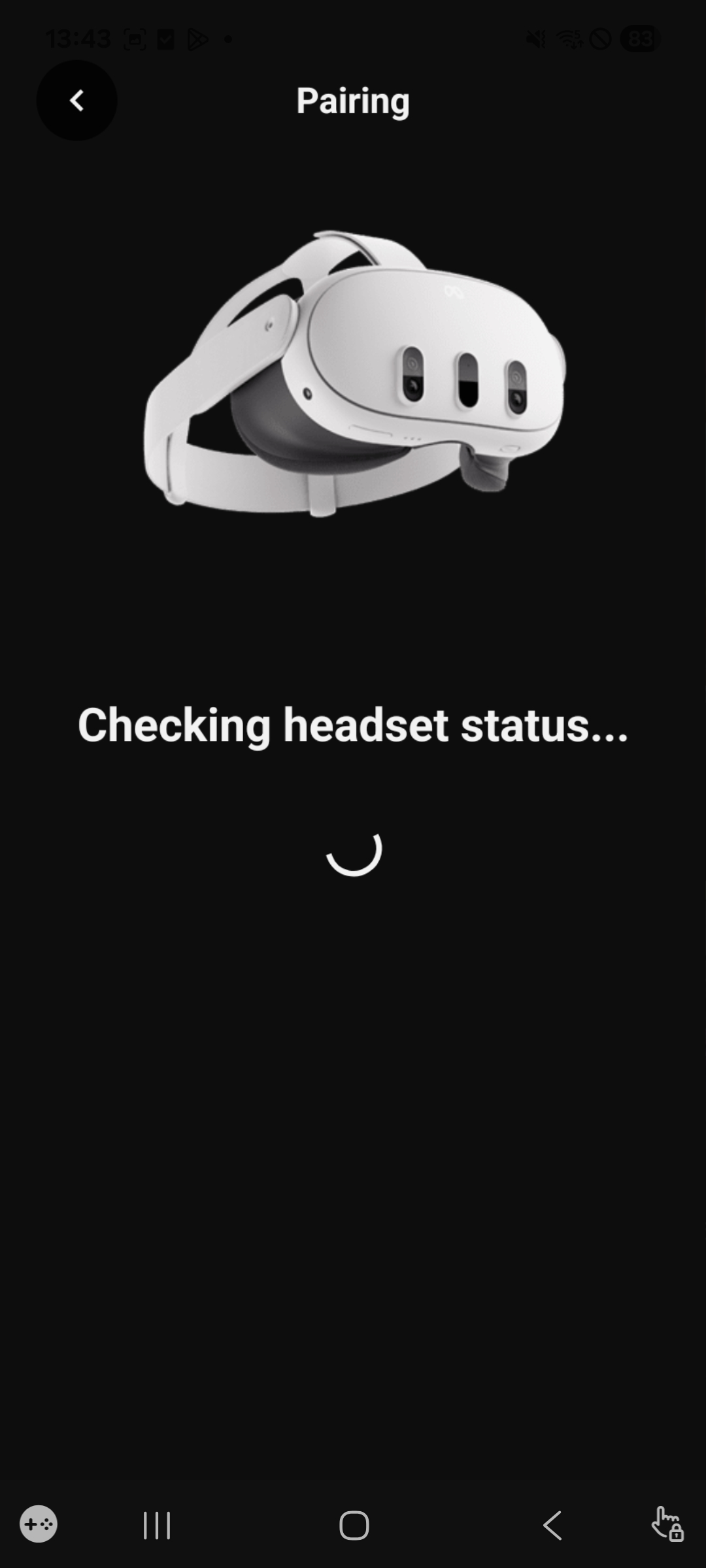
- Tap Pair new Headset / Add device and follow the prompts to pair your headset.
- Open the Horizon Store in your headset, search for Mixed Reality Trainer, and install the PHACON app.
-

Raspberry Pi Setup
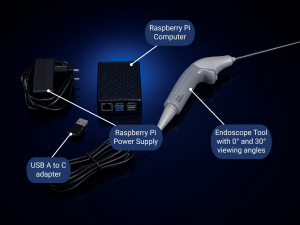
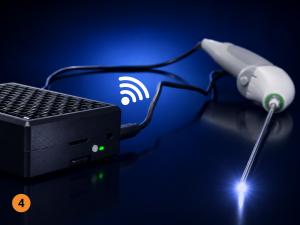
The Raspberry Pi streams live endoscope footage directly to your Meta Quest headset via a local Wi-Fi network.
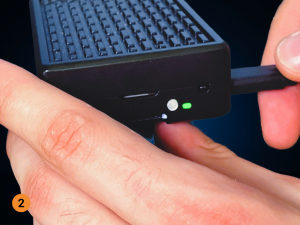
- Connect the Raspberry Pi to the power supply and plug it into an outlet.
- Turn on the Raspberry Pi: Verify it is running by checking for a solid green light on the front panel.
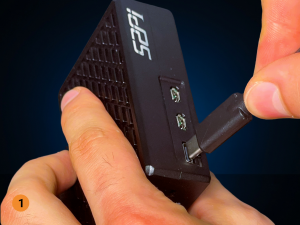
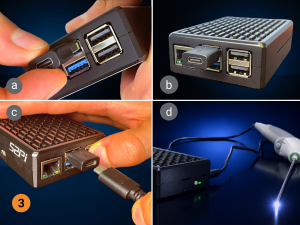
- Connect the Endoscope to the Raspberry Pi’s USB port using the provided USB Adapter. The lights on the tip of the endoscope will turn on when connected.
- Connect your headset to the Raspberry Pi’s Wi-Fi network:
- WLAN Network Name:
PHACONTrainer - WLAN Password:
phaconaccess
- WLAN Network Name:
For Groups / Course Preparation
If you are organizing a course, we recommend doing this setup in advance so participants can focus purely on training.
- 🔋 Charge all Headsets: Expect approximately 120 minutes (2 hours) of runtime on a full charge.
- 🗂️ Layout everything in an organized way at each workstation.
- 🔄 Check the Quest Store to ensure you have the latest version of the Mixed Reality Trainer App.
- 📶 Make sure the Quest is connected to the local
PHACONTrainerWi-Fi.
Troubleshooting / Frequently Asked Questions (FAQ)
1. Why do I need my phone?
The Meta Horizon smartphone app is required by Meta to perform the initial setup, register your headset, and pair it securely to your Meta Account.
2. Do I need a Meta Account?
Yes. Meta requires a free user account to download and install applications from the Horizon Store.
3. Need Further Assistance?
- Email:
- Phone: +49 (0) 341 478 39 50
- Visit our Contact Page